Welcome to Inventory Management
This module introduces Inventory Management. Explore how to add, update, view, and manage inventory for better stock control.
Product
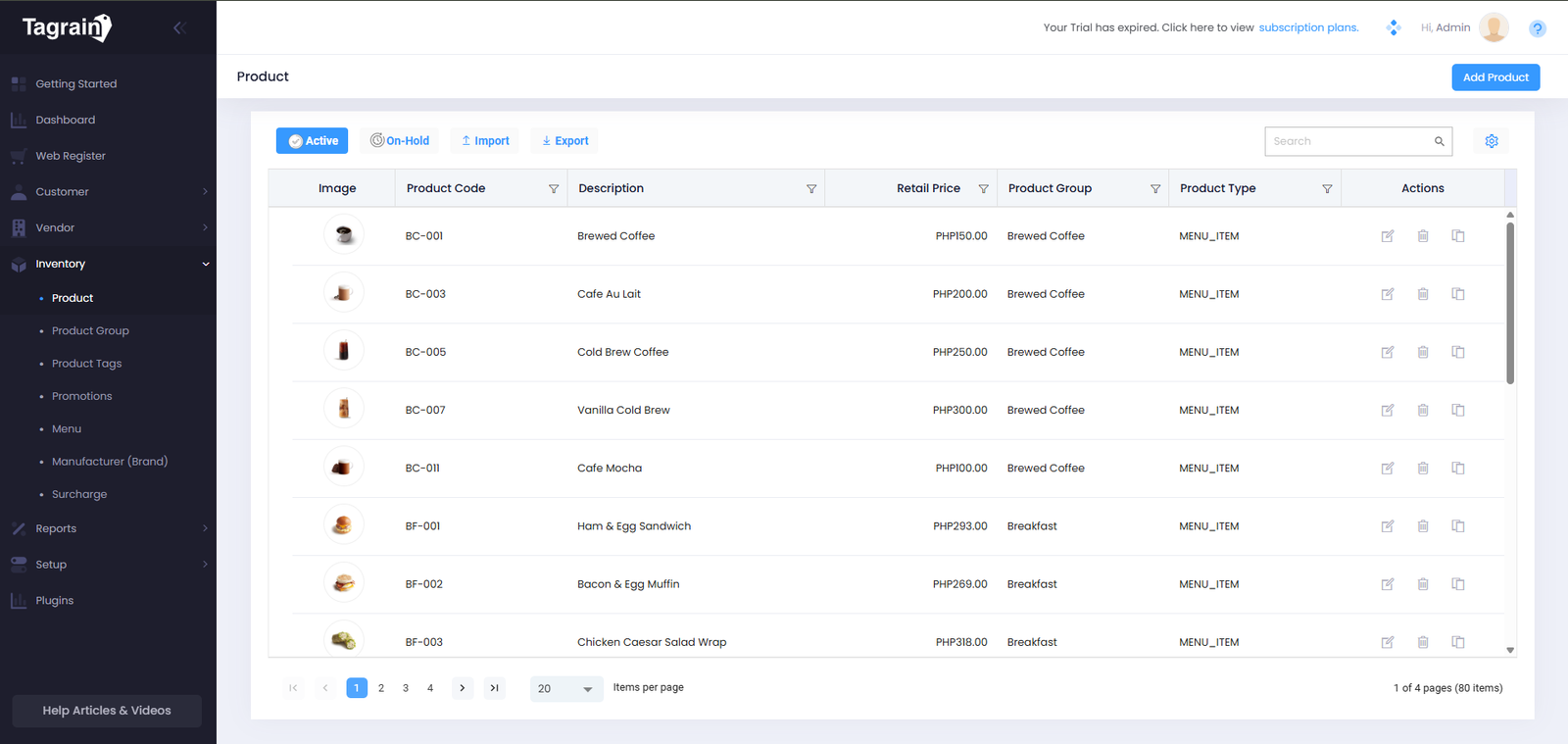
Product helps you easily create, view, and maintain product records. Keep product information organized and accessible for better product management.
Product List
View Products registered in the system.
Product Group
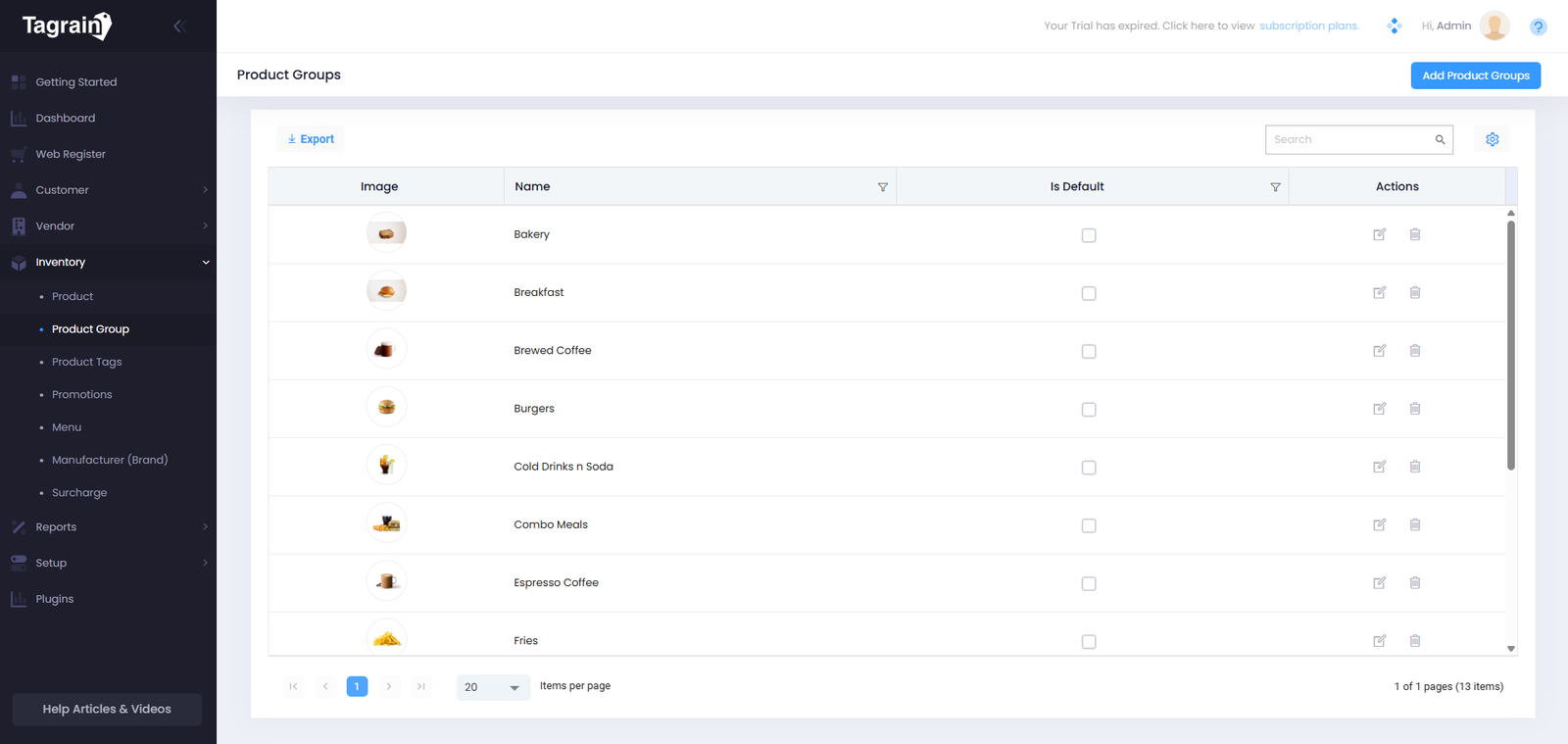
Organize Products into groups for easier management and better organization.
Add Product
Add and save Product details in Tagrain POS for easy access and management.
- From the Product List, click Add Product.
- Enter the required Product details. You may skip optional fields.
- Toggle the SC and PWD Discount if the Item is subject to be discounted. You can choose 5% or 20% Discount after turning On the Toggle Button.
- Add the Cost and Price of the Item.
- In Advanced Option, turn on the applicable toggle buttons
- Add the stocks in Invenotry.
- Add image in Product Images.
- Click Save to add the Product to Tagrain POS.
Add Product Group
Add and save Product group details for easy access and management.
- From the Product Group, click Add Product Group.
- Enter the Name of the Product Group.
- Toogle the is Difault if you want to make the registered Product Group as Default
- Add image in the Box Icon.
- Click Save to add the Vendor Group to Tagrain POS.
Promotions
Promotions helps you easily create, view, and maintain promotion records. Keep promotion information organized and accessible for better promotional control.
- From the Product Group, click Add Product Group.
- Enter the Name of the Product Group.
- Toogle the is Difault if you want to make the registered Product Group as Default
- Add image in the Box Icon.
- Click Save to add the Vendor Group to Tagrain POS.
Ready for the next module?
Once you're comfortable with Inventory Management, continue to the Inventory Transaction.